If you've worked with on-prem Active Directory, you already know how useful groups are for managing permissions instead of assigning access one user at a time. Microsoft Entra ID (the cloud-based identity service that used to be called Azure Active Directory) works the same way, and honestly, getting comfortable with groups here is one of the first things any Azure or hybrid-cloud admin should master.
In this guide, I'll walk you through what group types and membership types are available, and then show you exactly how to create one from the Entra admin center.
Why groups matter in Entra ID
Instead of granting a resource, an app, or a conditional access policy to 50 individual users, you assign it once to a group. Add or remove people from the group later, and their access updates automatically. This is especially handy if you're also managing Azure networking resources — things like VPN access, subscription-level RBAC roles, or Conditional Access policies tied to specific job roles almost always get scoped to a group rather than a single account.
Let me quickly explain what to keep in mind before creating a group in Entra Id.
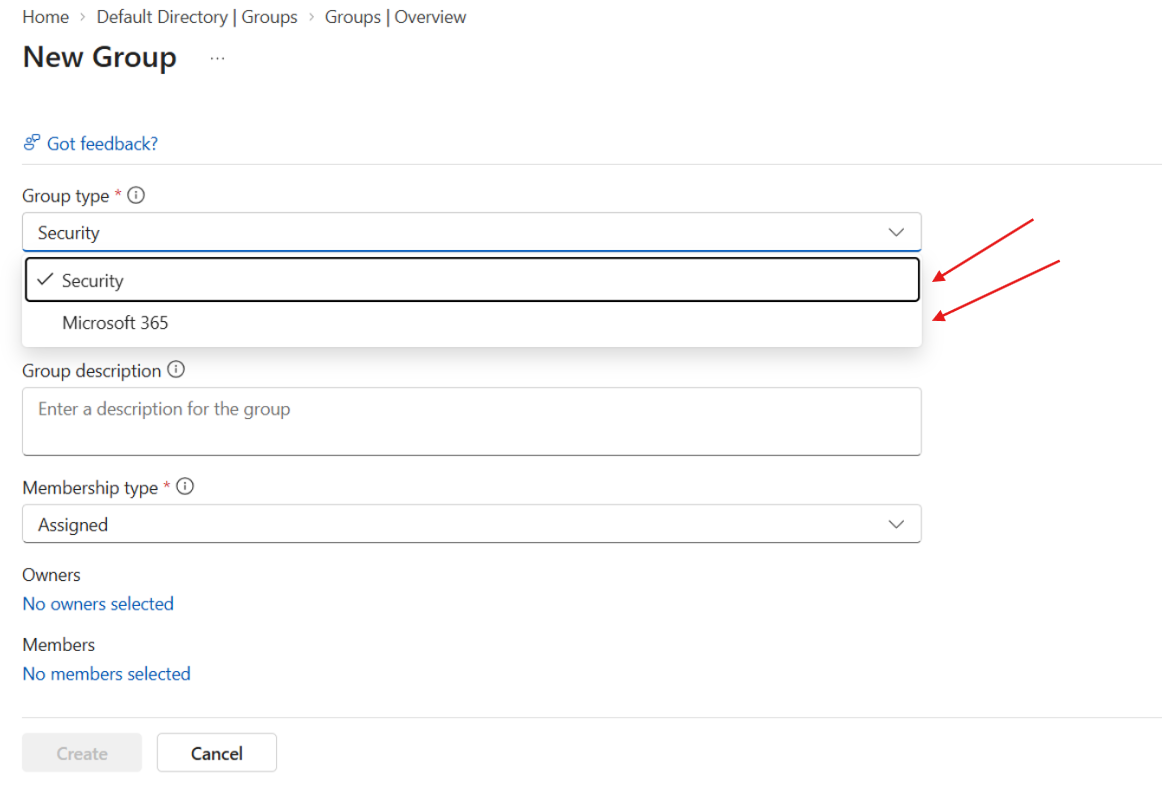
Group types in Entra ID
Entra ID gives you two group types to choose from:
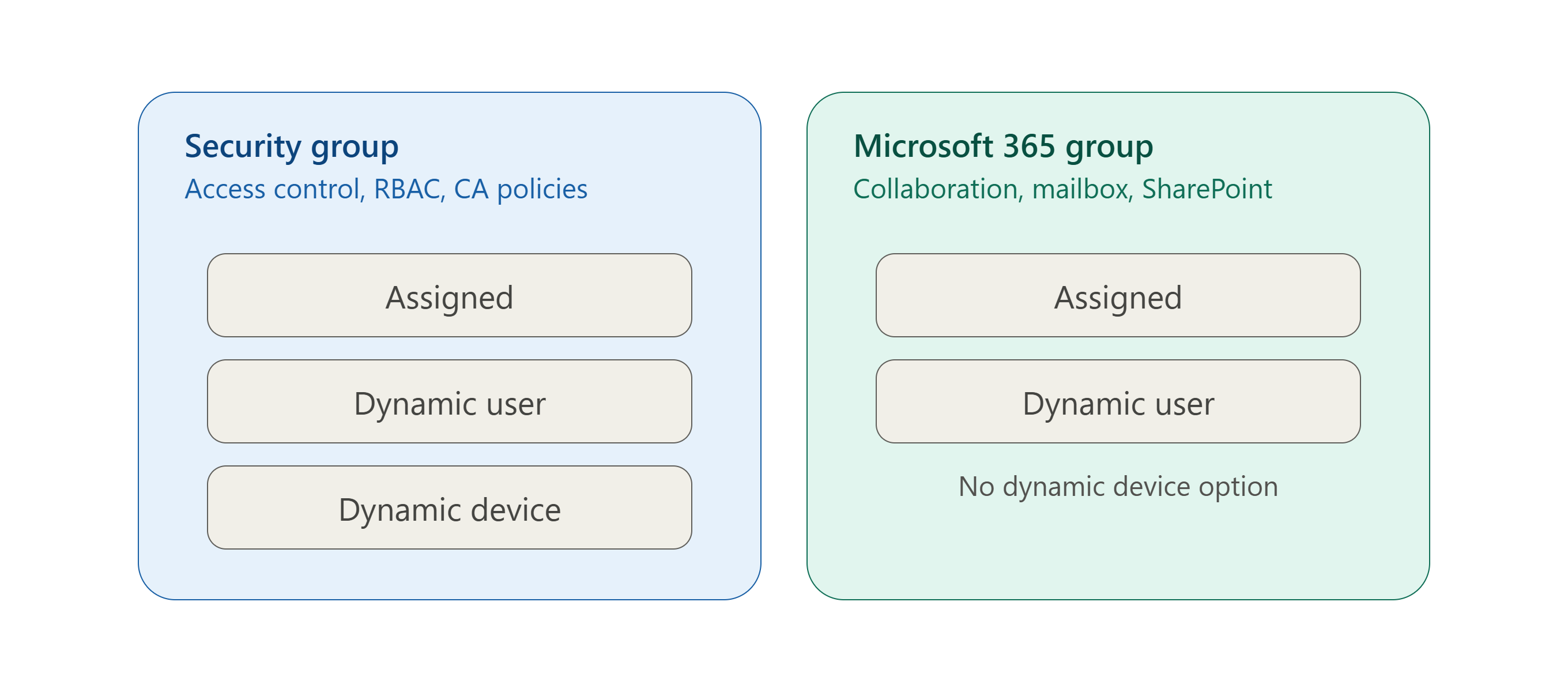
Security groups — used to manage access to resources such as Azure subscriptions, SharePoint sites, applications, or Conditional Access policies. This is the type you'll use most often in networking and infrastructure work.
Microsoft 365 groups — built for collaboration. Creating one of these also provisions a shared mailbox, calendar, SharePoint site, and Planner board. If your task is purely about access control rather than collaboration, stick with a security group.
Membership types
Once you've picked the group type, you also choose how members get added:
- Assigned — you manually add and remove specific users or devices. Full control, no automation.
- Dynamic User — members are added automatically based on rules (for example, department = "Network Operations").
- Dynamic Device — same idea, but based on device attributes instead of user attributes.
Dynamic membership is only available if your tenant has Entra ID P1 or P2 licensing.
Here's a quick visual to keep the group type and membership options straight before you head into the portal:
Step-by-step: Creating a group in Entra ID
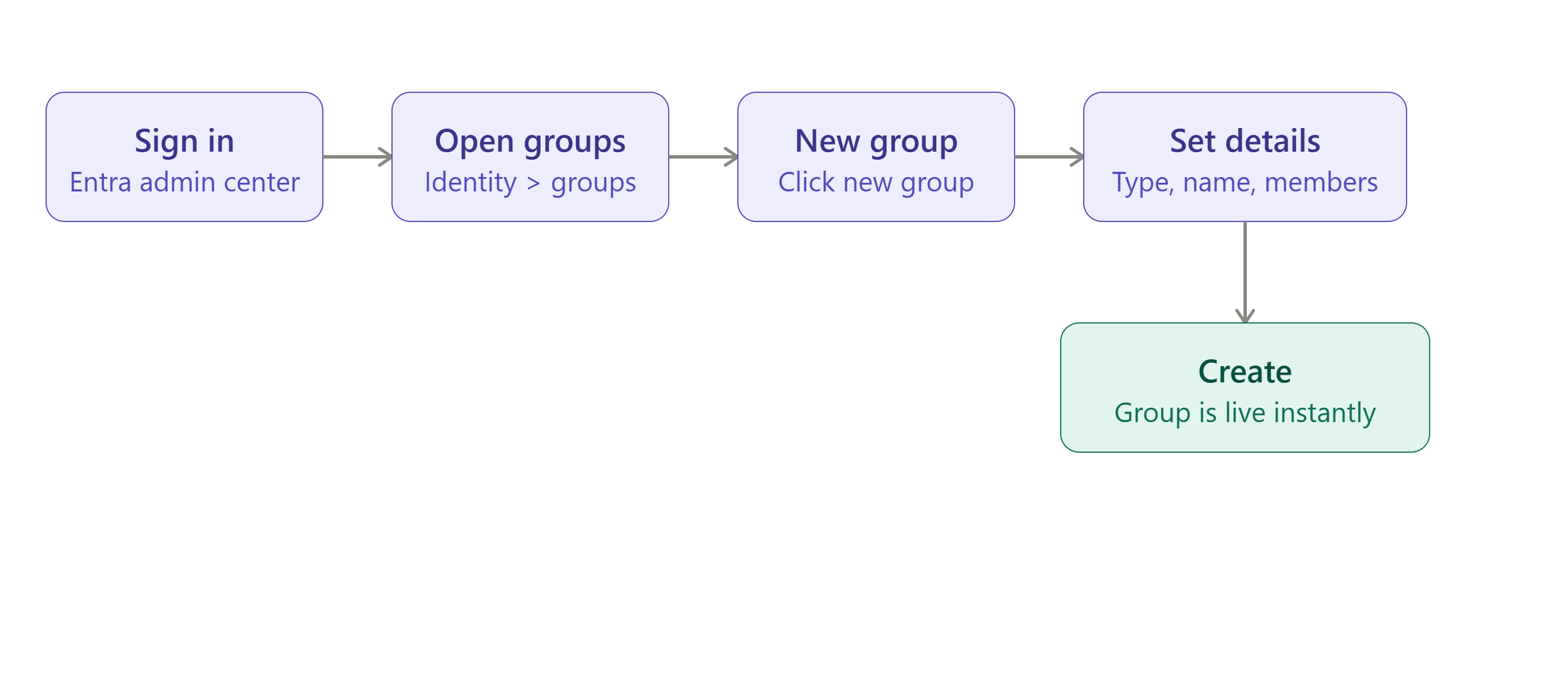
Here's the process from start to finish:
- Sign in to the Microsoft Entra admin center with an account that has at least the Groups Administrator or User Administrator role.
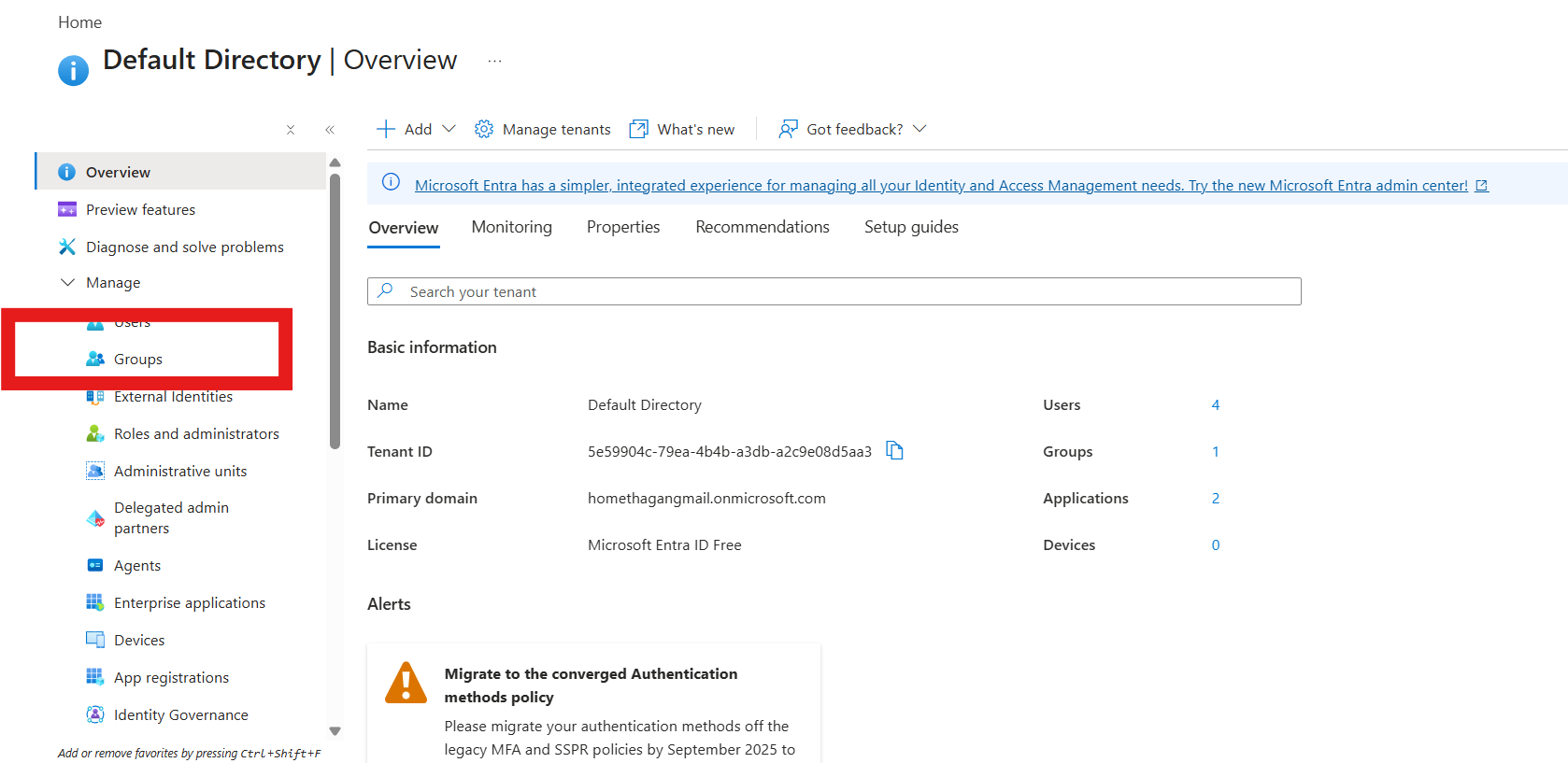
- In the left-hand menu, go to Identity > Groups > All groups.
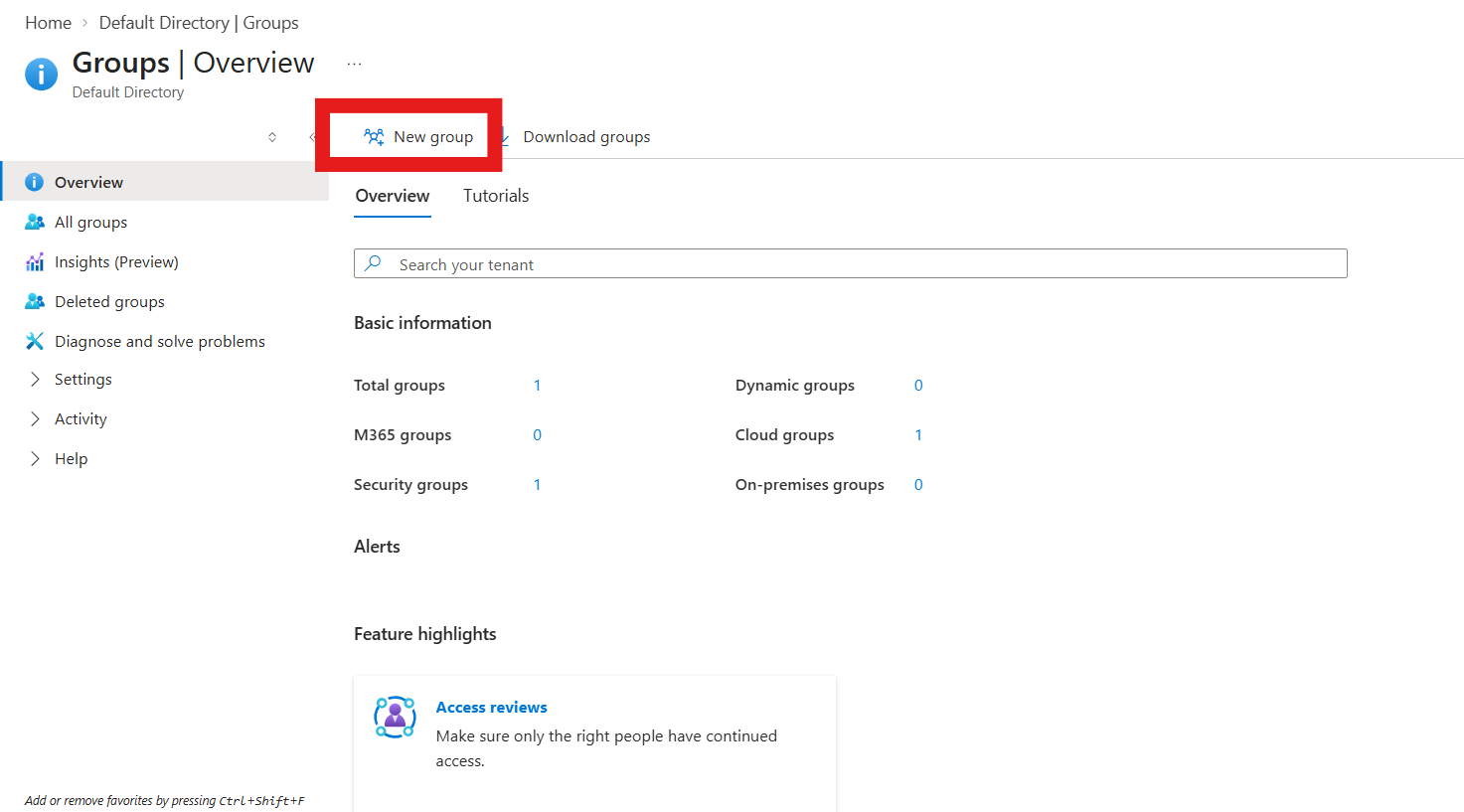
3. Click New group at the top.
4. Choose your Group type (Security or Microsoft 365).
5. Enter a Group name and, optionally, a Group description. Keep the naming consistent — something like SG-NetworkAdmins or SG-AzureVPNUsers makes it much easier to manage later.
6. Set the Membership type (Assigned, Dynamic User, or Dynamic Device).
7. Under Members, click No members selected and add the users or devices you want in the group (skip this if you chose a dynamic membership type — you'll define a rule instead).
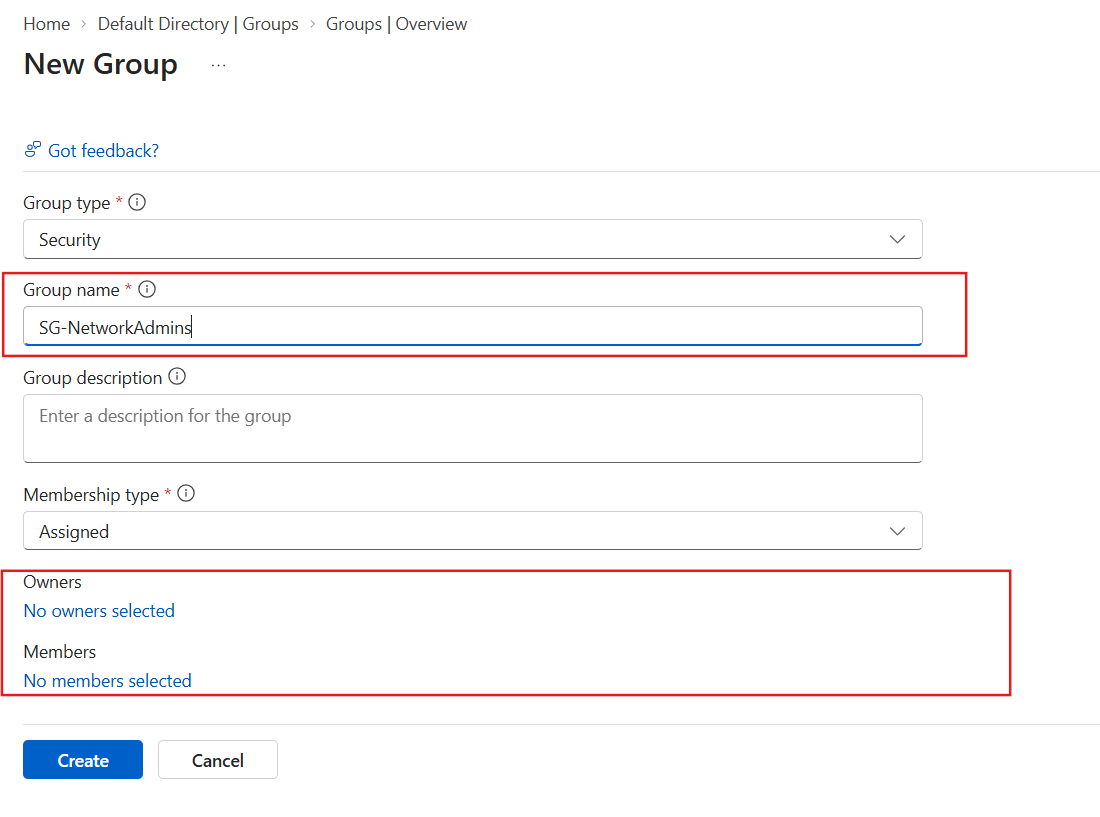
8. ptionally assign an Owner who can manage the group without needing admin rights.
9. Review everything and click Create.
That's it — the group is created instantly and ready to use.
Where these groups actually get used
Once your group exists, here's where you'll typically plug it in on the networking/cloud side:
- Azure RBAC — assign a role (like Network Contributor) to the group instead of individual users, scoped to a subscription, resource group, or VNet.
- Conditional Access policies — target a group so MFA or location-based restrictions apply only to that set of users, like your remote network engineers.
- Application access — control who can sign in to an enterprise app registered in Entra ID.
- Licensing — assign Microsoft 365 or Entra ID P1/P2 licenses at the group level so new members automatically inherit the right license.
A few tips before you go
- Use a clear naming convention from day one (
SG-,DL-,M365-prefixes, for example). It saves a lot of headaches once you have 50+ groups. - Prefer security groups over Microsoft 365 groups for pure access-control scenarios — no need for the extra mailbox and SharePoint overhead.
- If you're on Entra ID Free tier, dynamic membership won't be available — you'll need P1 or P2.
- Always assign at least one owner to important groups so access management doesn't bottleneck through IT alone.
That covers the essentials of creating and using groups in Microsoft Entra ID. Once you're comfortable with this, the natural next step is looking at how these groups tie into Conditional Access policies and Azure RBAC role assignments — both are big topics I'd recommend covering separately on your site.



Comments (0)
Leave a Comment
No comments yet. Be the first to comment!