A lot of people, especially students and small business owners running their first Azure environment, hit this same wall: they've got a working Azure subscription, and now a colleague, teammate, or client needs access to it too. The instinct is to just share the sign-in credentials. Don't do that.
Azure gives you a much cleaner and safer option — adding the person as a user on your subscription and controlling exactly what they can (and can't) do through role-based access control, or RBAC. In this post, I'll walk you through exactly how to do that.
Why you shouldn't just share your login
Sharing your Microsoft account credentials means the other person has full control over billing, every resource, and every setting tied to your account — with no way to track who did what. If something breaks or gets deleted, you won't know who touched it. Worse, if that person ever needs to be removed, you'd have to change your own password and lock yourself out of your own workflow temporarily.
Granting access through IAM avoids all of that. Each person signs in with their own identity, and you control precisely what level of access they get.
Understanding Azure roles before you start
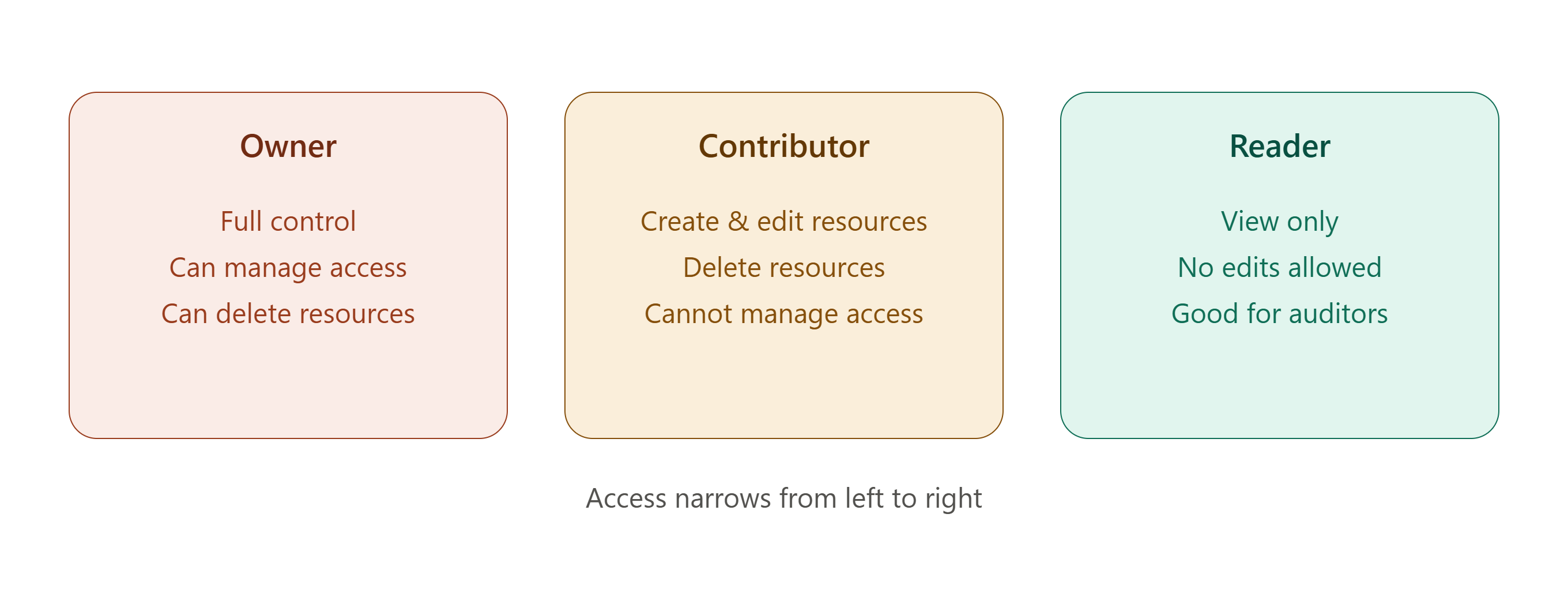
Before adding anyone, it helps to know the three roles you'll use most often:
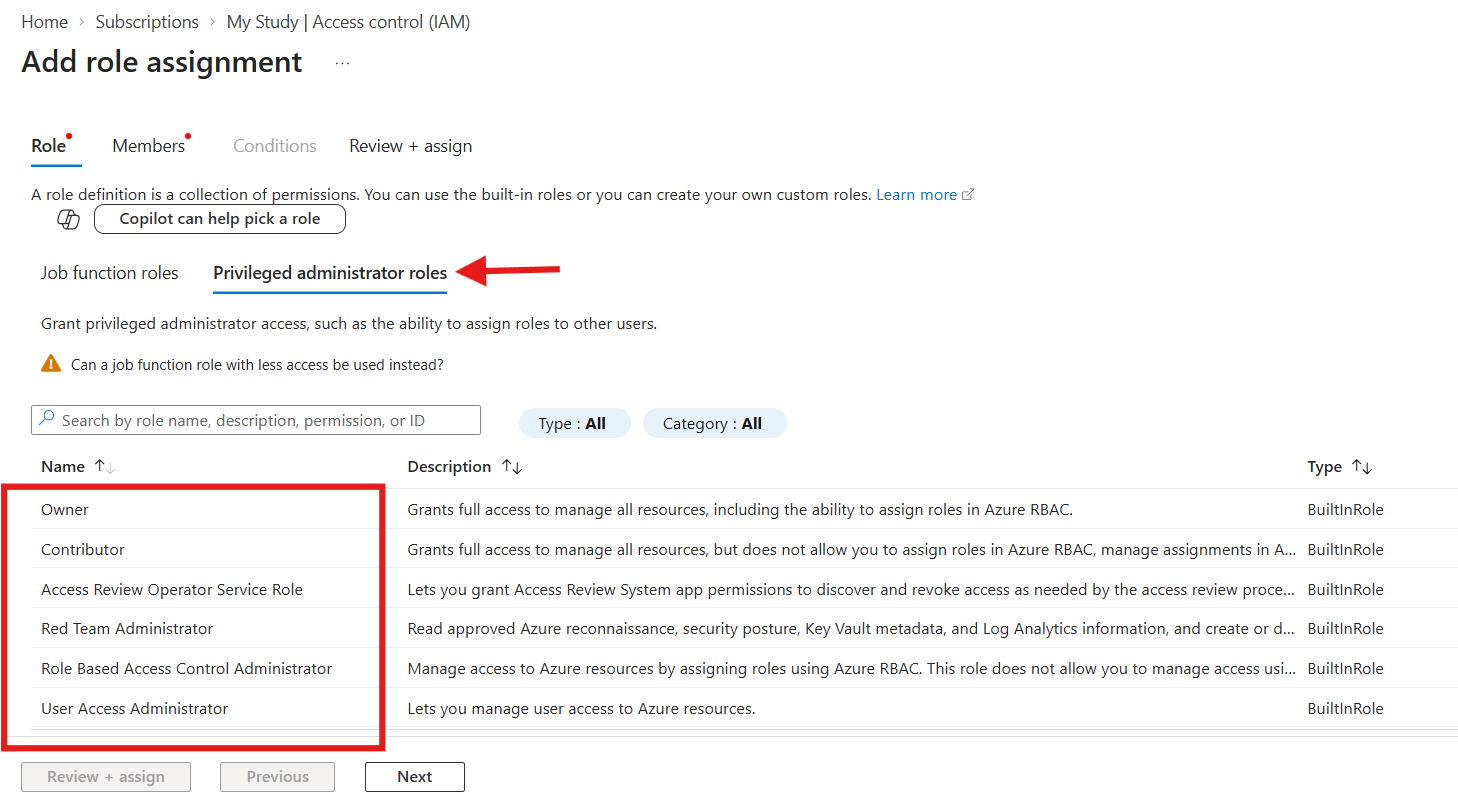
- Owner — full control, including the ability to grant access to others. Only give this to people you fully trust with the subscription.
- Contributor — can create, modify, and delete resources, but cannot change who has access.
- Reader — can view everything but cannot make any changes. Great for auditors, clients who just need visibility, or stakeholders monitoring cost and usage.
There are dozens of more specific built-in roles (like Network Contributor or Virtual Machine Contributor) if you want to limit someone to just one type of resource, but Owner, Contributor, and Reader cover most everyday scenarios.
Step-by-step: Adding a user to your Azure subscription
Here's the exact process:
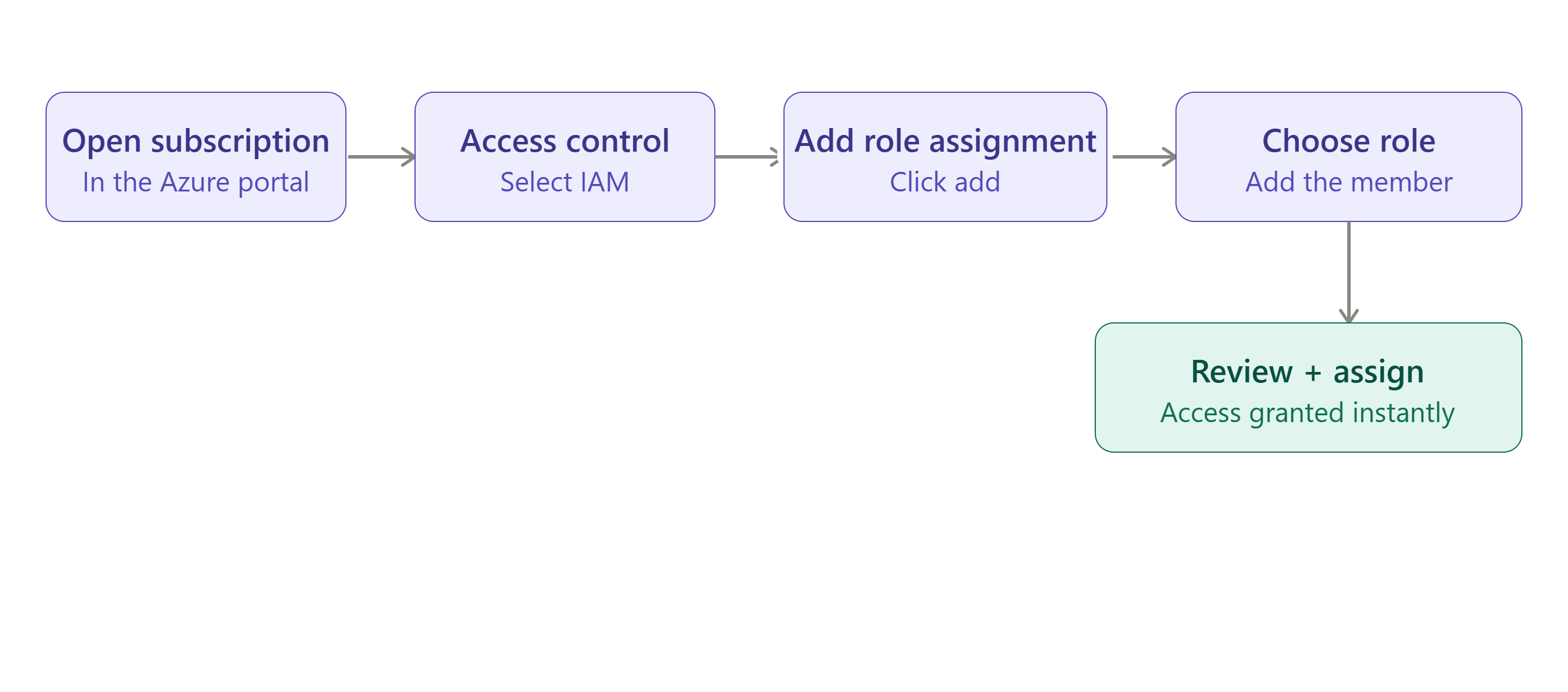
- Sign in to the Azure portal with an account that has Owner or User Access Administrator rights on the subscription.
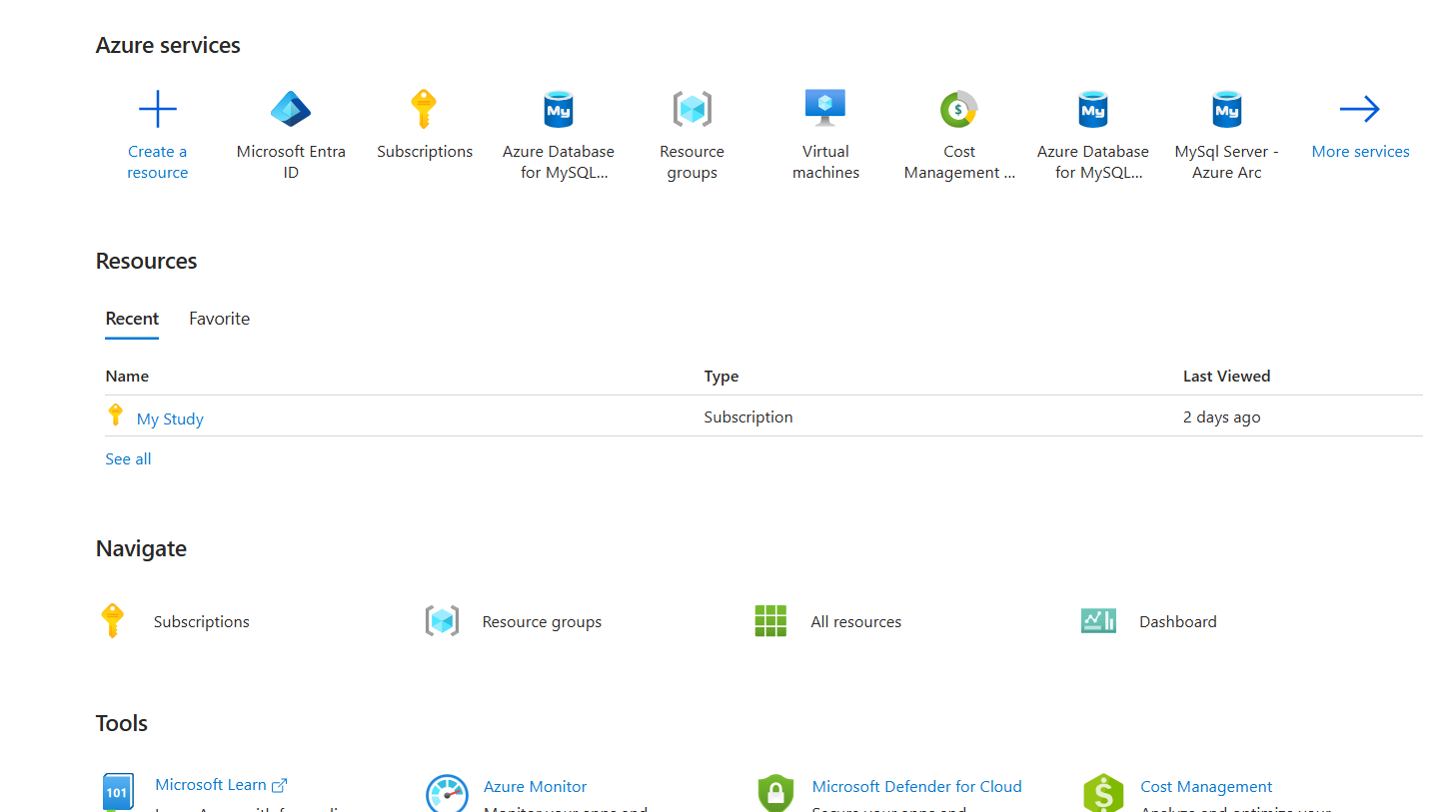
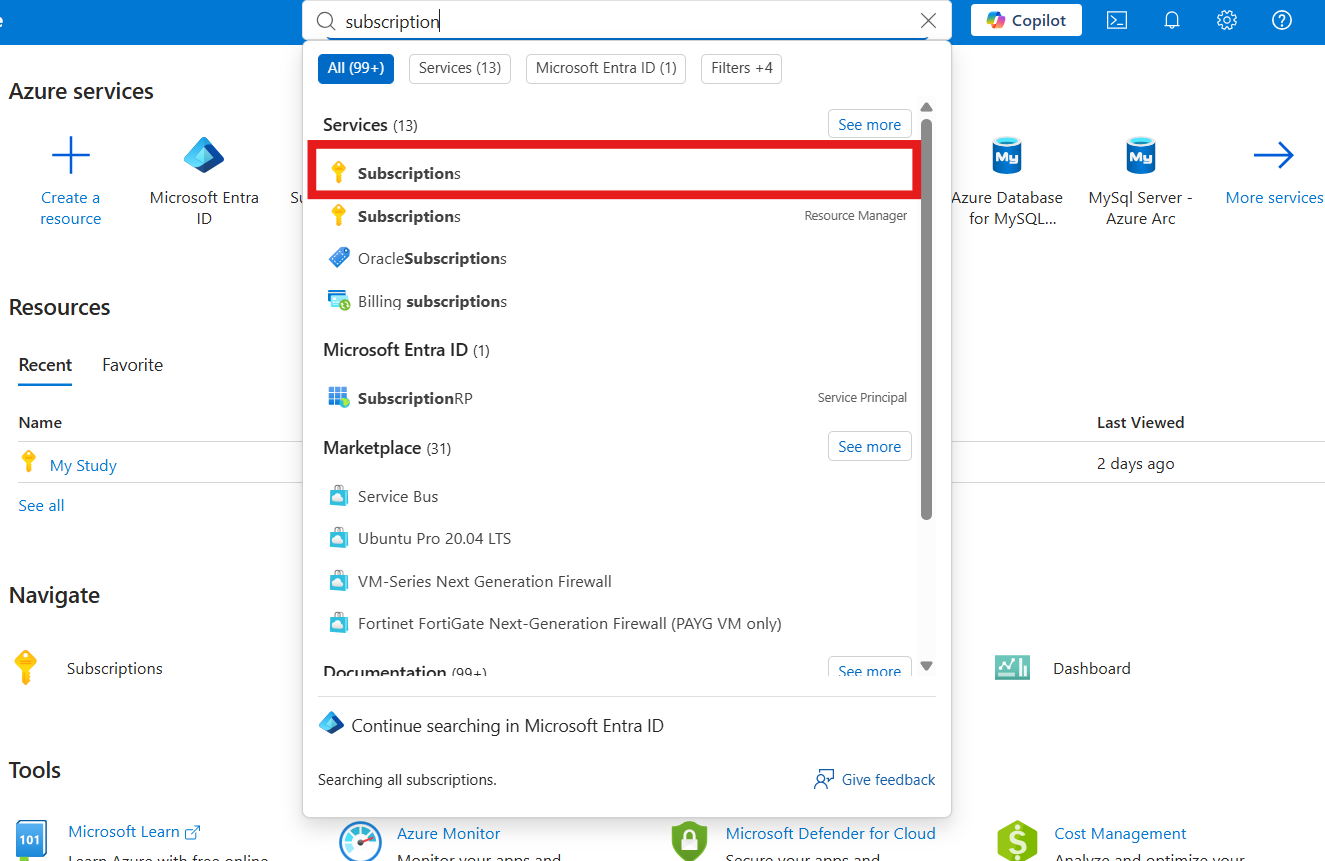
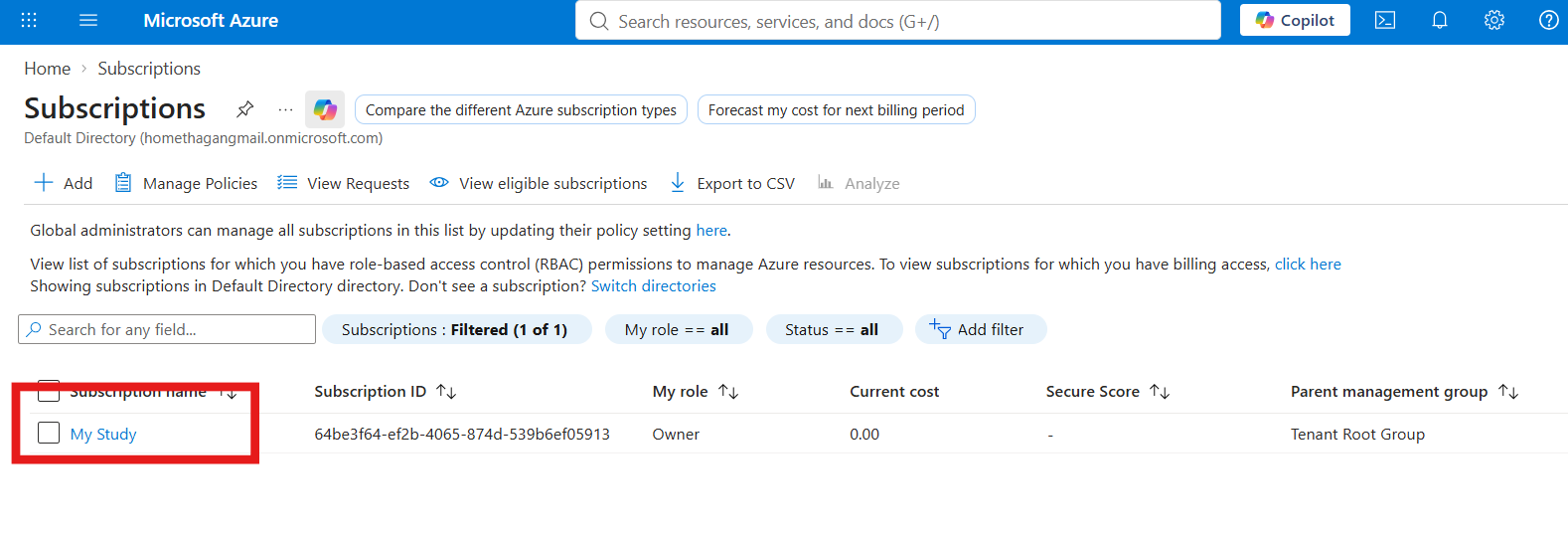
2. In the search bar, type Subscriptions and open the subscription you want to share.
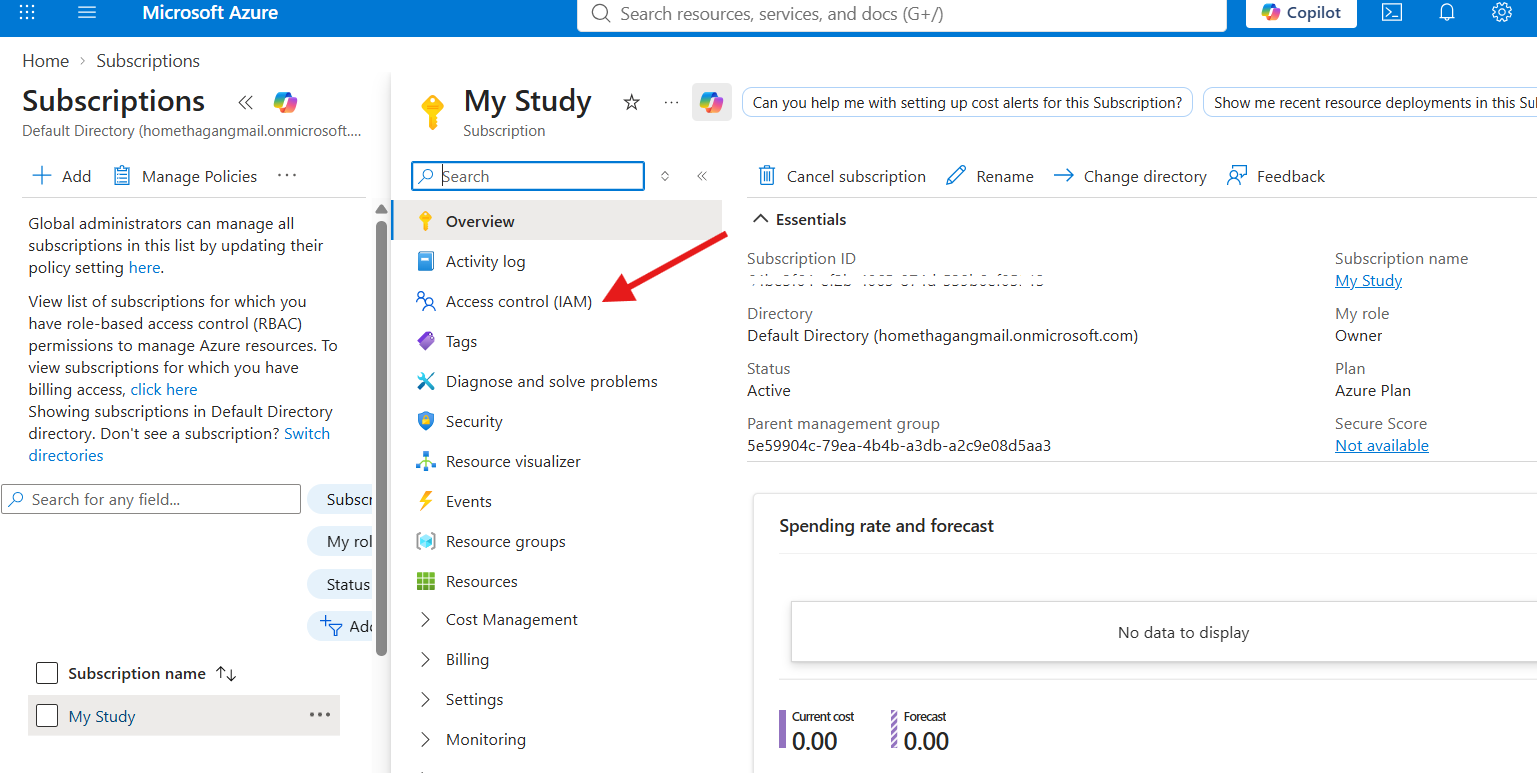
3. In the left-hand menu, select Access control (IAM).
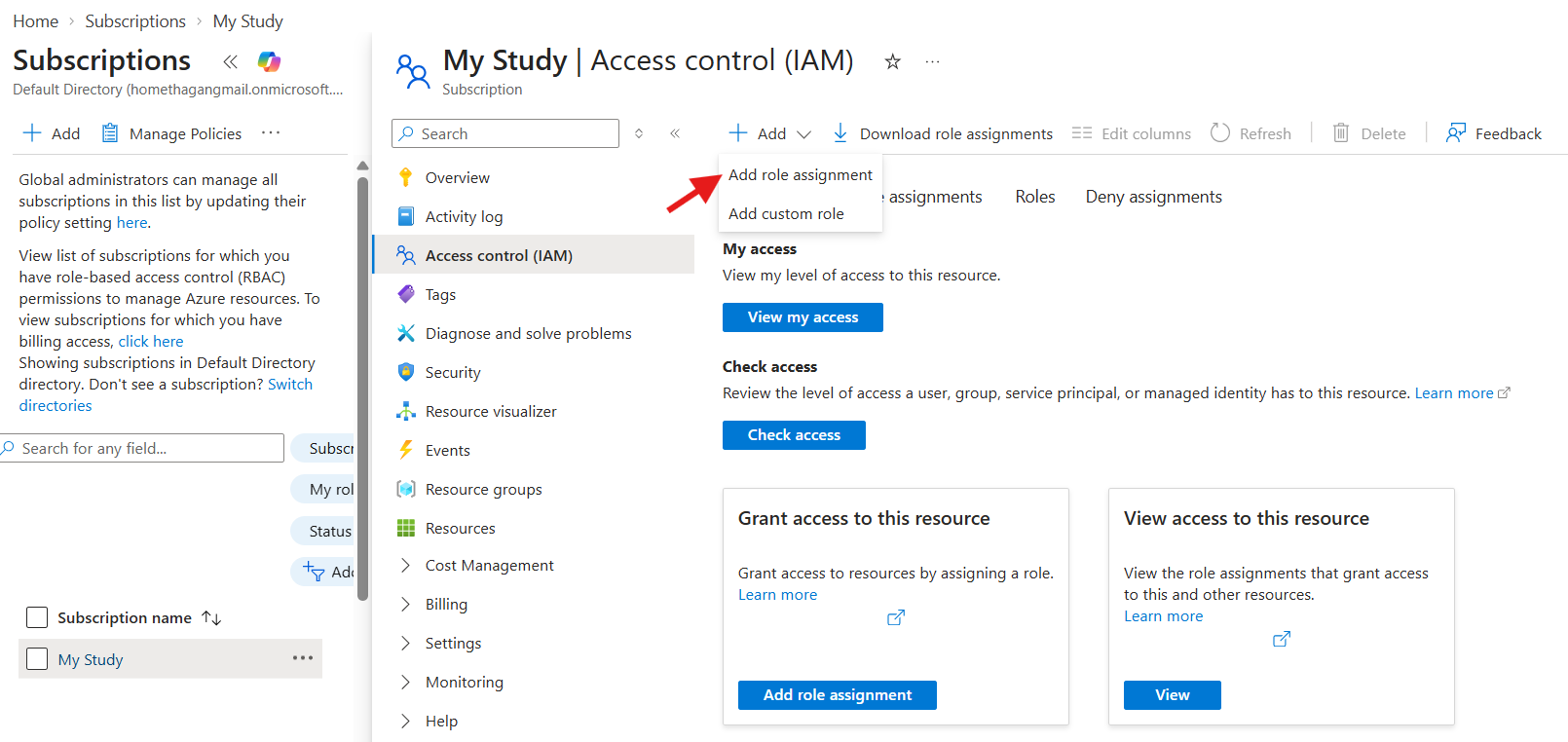
4. Click + Add at the top, then choose Add role assignment.
5. Pick the role you want to assign (Owner, Contributor, Reader, or a more specific one).
6. Under Members, click + Select members, then search for the person by name or email address. Note: they need an existing account in your Microsoft Entra ID tenant, or you'll need to invite them as a guest first.
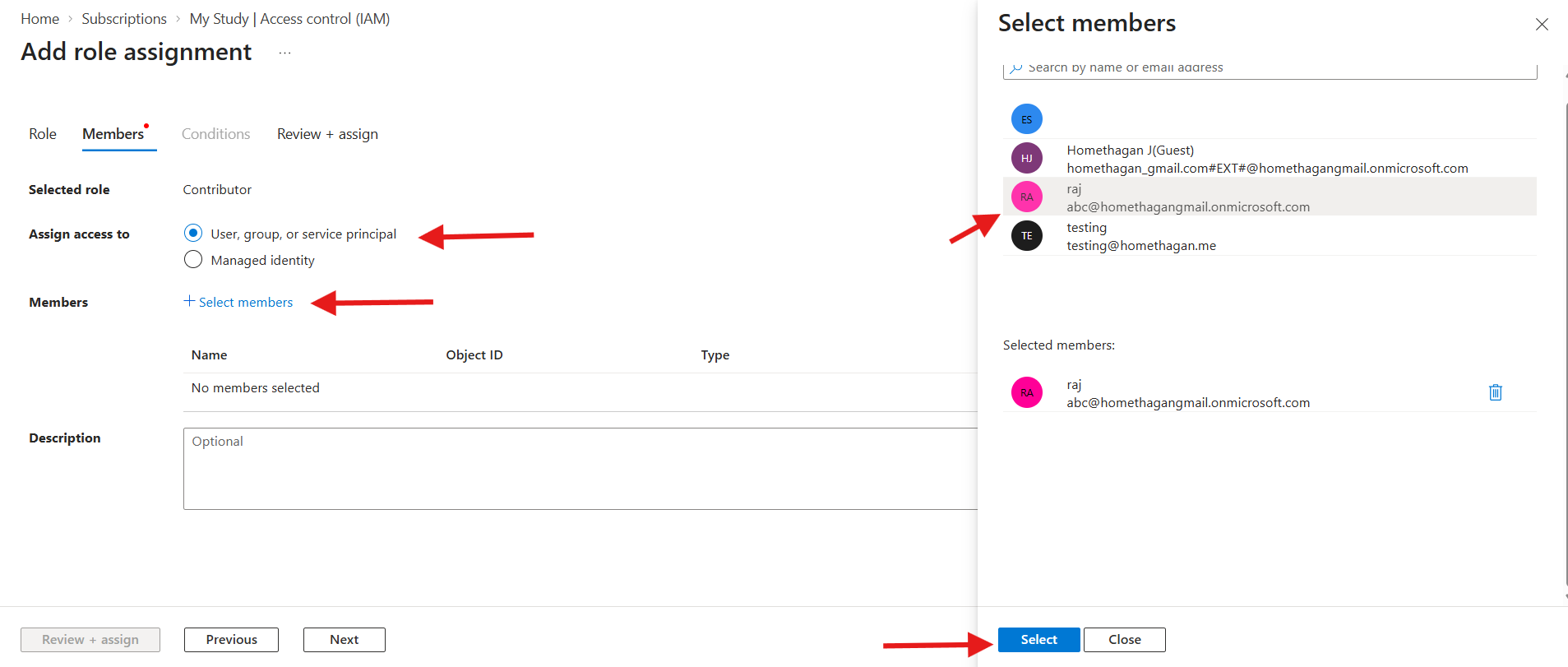
7. Click Select, then Review + assign.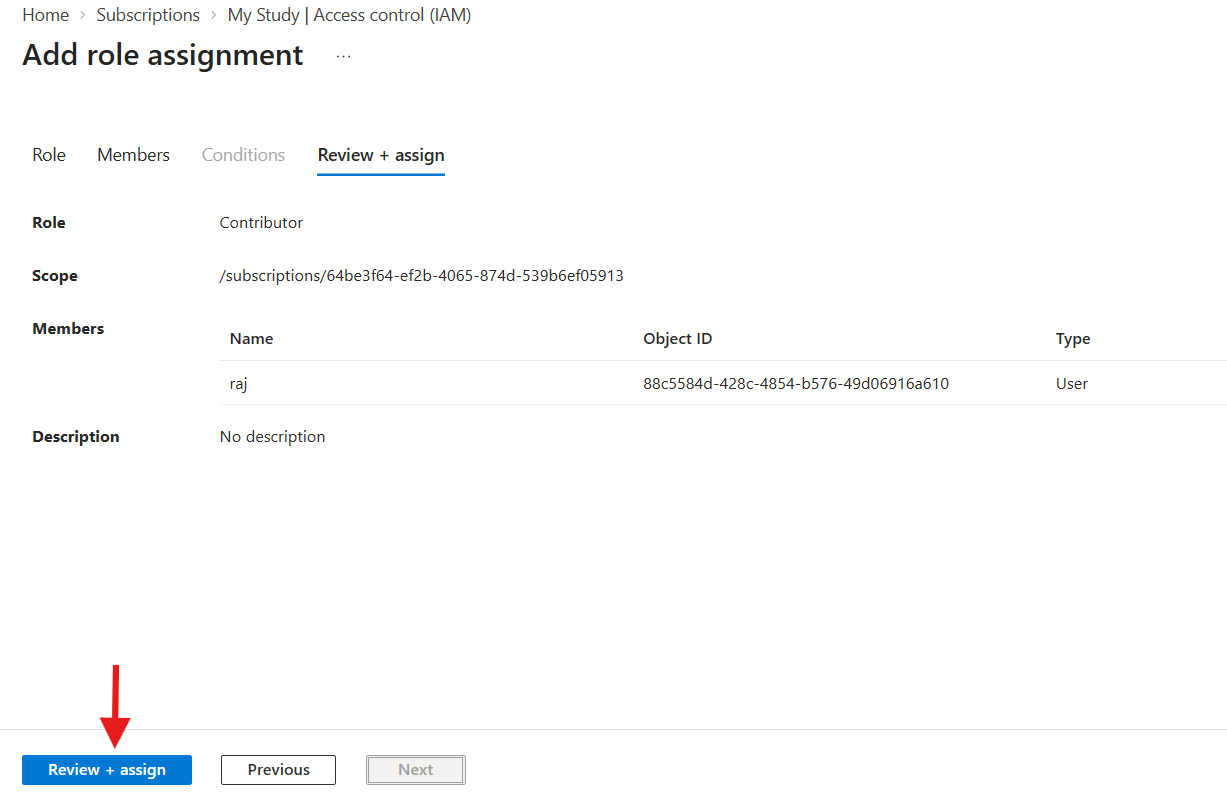
That's it — the person now has access at exactly the level you defined, and you can see their name listed under Access control (IAM) at any time.
Removing or changing access later
If someone's role changes, or they no longer need access:
- Go back to Access control (IAM) on the subscription.
- Select the Role assignments tab.
- Find the user, check the box next to their name, and click Remove.
Their access is revoked immediately — no password changes required, no disruption to anyone else.
Best practices worth following
- Follow least privilege — give people the lowest role that lets them do their job. You can always upgrade access later.
- Avoid handing out Owner freely — it's the one role that can grant access to others, so keep the list of Owners small.
- Use groups instead of individuals for teams — if you're sharing access with an entire team, create a security group in Entra ID (see our guide on that) and assign the role to the group instead of each person one by one.
- Review access periodically — Azure's Access Reviews feature (available with Entra ID P2) can automate this if you're managing a larger environment.
- Scope access tightly when possible — instead of assigning at the subscription level, you can assign roles at the resource group or even individual resource level for tighter control.
Wrap-up
Sharing an Azure subscription isn't really about "sharing" at all — it's about granting the right person the right level of access without ever handing over your credentials. Once you're comfortable with role assignments at the subscription level, the natural next step is learning how to scope roles down to individual resource groups, which gives you even finer control over what each teammate can touch.



Comments (0)
Leave a Comment
No comments yet. Be the first to comment!