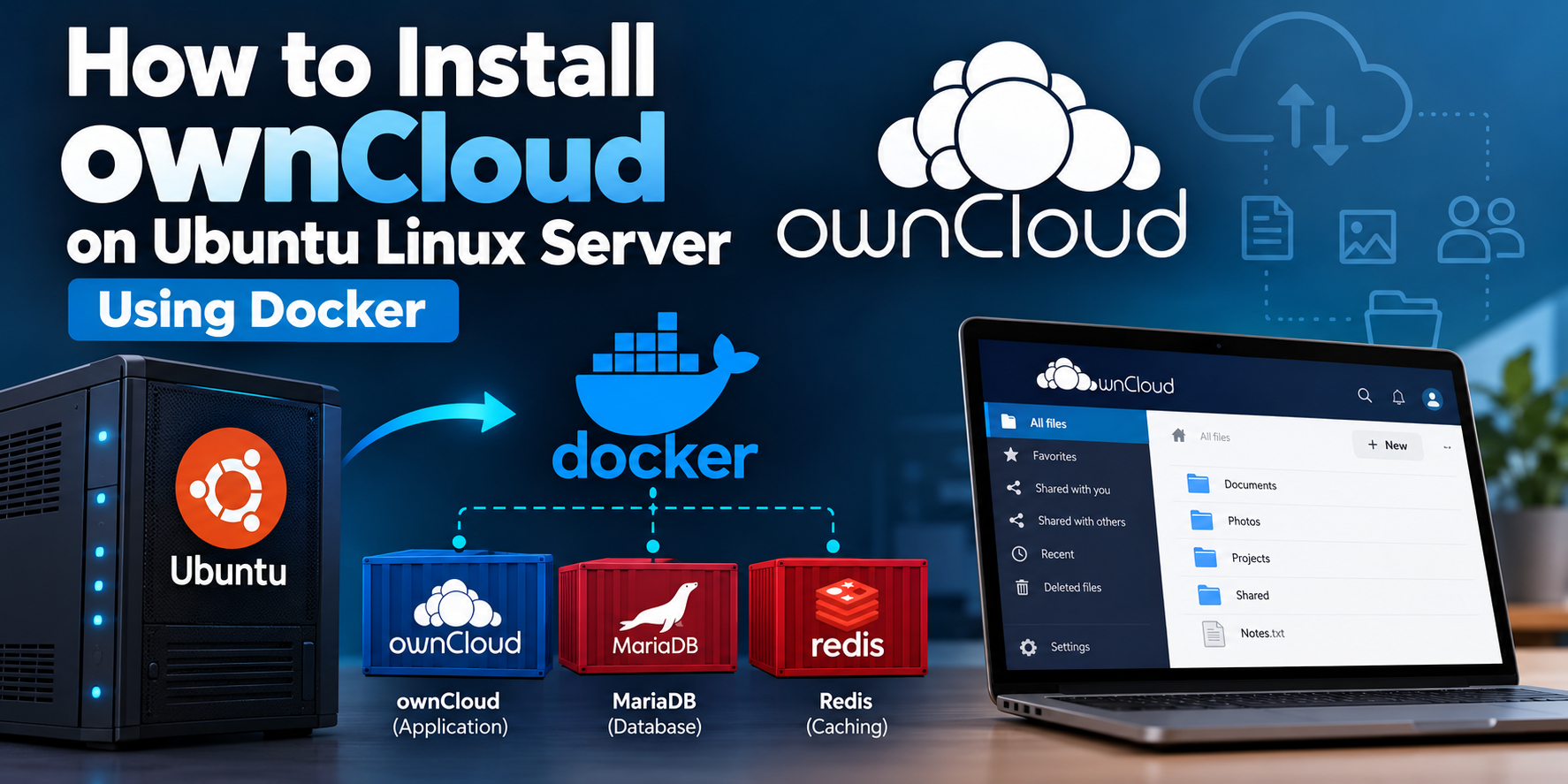
Category: Linux | Cloud Computing | Docker | Self-Hosted Cloud Storage
Difficulty: Beginner to Intermediate
Operating System: Ubuntu Linux Server
Technologies: Docker, Docker Compose, ownCloud, MariaDB, Redis
Introduction
Cloud storage has become an essential part of modern IT infrastructure, allowing individuals and organizations to store, manage, synchronize, and share files across multiple devices.
Although cloud storage services such as Google Drive, OneDrive, and Dropbox are widely used, hosting your own cloud storage platform provides greater control over data, storage resources, and system configuration.
One popular open-source solution is ownCloud, a self-hosted file-sharing and synchronization platform that enables users to build and manage their own private cloud storage environment.
In this tutorial, we will explore how to install and configure an ownCloud server on Ubuntu Linux using Docker and Docker Compose.
By the end of this guide, you will have a functional ownCloud environment running in Docker containers, supported by MariaDB for database management and Redis for caching.
1. What Is ownCloud?
ownCloud is an open-source file synchronization and sharing platform that allows users to store and access files through a web-based interface.
Unlike third-party cloud storage services, ownCloud can be deployed on an organization's own infrastructure or a privately managed Linux server.
Key Features of ownCloud
-
Self-hosted storage: Store and manage files on your own server infrastructure.
-
File synchronization: Synchronize files between devices.
-
File sharing: Share files and folders with other users.
-
User management: Create and manage user accounts.
-
Web-based access: Access stored files through a web browser.
-
Data control: Manage storage policies, user permissions, and server configurations.
ownCloud can be useful for educational institutions, small businesses, IT professionals, and organizations interested in private cloud infrastructure.
2. Understanding the Architecture
Before starting the installation, it is important to understand the technologies involved.
We will use three main Docker containers:
ownCloud Server
This container hosts the ownCloud application and provides the web interface for accessing and managing files.
MariaDB
MariaDB is a relational database management system used to store ownCloud application data, including user information, configuration records, and file metadata.
Redis
Redis is an in-memory data store used by ownCloud for caching and improving application responsiveness.
3. Prerequisites
Before beginning the installation, ensure that the following requirements are available:
-
A Linux server running a supported Ubuntu version.
-
A user account with
sudoprivileges. -
A working internet connection.
-
Basic familiarity with Linux terminal commands.
-
Sufficient RAM, CPU, and disk space for your intended usage.
For a small learning or testing environment, a virtual machine with approximately 2 CPU cores, 4 GB RAM, and 20 GB storage can serve as a reasonable starting point. Actual resource requirements depend on the number of users and stored files.
Note: This tutorial focuses on a local or internal-network installation. Deploying ownCloud on the public internet requires additional security configurations, including HTTPS, appropriate firewall rules, and secure authentication.
4. Step 1: Update the Ubuntu Linux Server and Install Docker Prerequisites
install Docker Engine for the first time on a new host machine, you need to set up the Docker apt repository. Afterward, you can install and update Docker from the repository.
# Add Docker's official GPG key:
sudo apt update
sudo apt install ca-certificates curl
sudo install -m 0755 -d /etc/apt/keyrings
sudo curl -fsSL https://download.docker.com/linux/ubuntu/gpg -o /etc/apt/keyrings/docker.asc
sudo chmod a+r /etc/apt/keyrings/docker.asc

# Add the repository to Apt sources:
sudo tee /etc/apt/sources.list.d/docker.sources <<EOF
Types: deb
URIs: https://download.docker.com/linux/ubuntu
Suites: $(. /etc/os-release && echo "${UBUNTU_CODENAME:-$VERSION_CODENAME}")
Components: stable
Architectures: $(dpkg --print-architecture)
Signed-By: /etc/apt/keyrings/docker.asc
EOF

sudo apt update
5. Install the Docker packages.
sudo apt install docker-ce docker-ce-cli containerd.io docker-buildx-plugin docker-compose-pluginVerify that the installation is successful by running the hello-world image:
sudo docker run hello-world6. Compose Setup
The following instructions assume you install locally. For remote access, the value of OWNCLOUD_DOMAIN and OWNCLOUD_TRUSTED_DOMAINS must be updated to represent the hostname(s) and/or IP addresses that the server is reachable at.
-
Create a new project directory at a location of choice:
mkdir owncloud-server-docker
cd owncloud-server-docker
2. Create a docker-compose.yml file as base to derive from with the following content:
touch docker-compose.yml
nano docker-compose.yml
then press ctrl+x and press Y and enter
# This oc-common template is a compose extension for ownCloud.
# It is used for starting the main ownCloud instance and reused e.g. when defining listeners for WND.
# This eases compose maintenance a lot.
x-owncloud: &oc-common
    image: owncloud/server:${OWNCLOUD_IMAGE}
    restart: always
    depends_on:
      - mariadb
      - redis
    environment:
      - OWNCLOUD_DOMAIN=${OWNCLOUD_DOMAIN}
      - OWNCLOUD_TRUSTED_DOMAINS=${OWNCLOUD_TRUSTED_DOMAINS}
      - OWNCLOUD_OVERWRITE_CLI_URL=${OWNCLOUD_OVERWRITE_CLI_URL}
      - OWNCLOUD_DB_TYPE=mysql
      - OWNCLOUD_DB_NAME=owncloud
      - OWNCLOUD_DB_USERNAME=owncloud
      - OWNCLOUD_DB_PASSWORD=owncloud
      - OWNCLOUD_DB_HOST=mariadb
      - OWNCLOUD_ADMIN_USERNAME=${ADMIN_USERNAME}
      - OWNCLOUD_ADMIN_PASSWORD=${ADMIN_PASSWORD}
      - OWNCLOUD_MYSQL_UTF8MB4=true
      - OWNCLOUD_REDIS_ENABLED=true
      - OWNCLOUD_REDIS_HOST=redis
    volumes:
      - type: volume
        source: oc_files
        target: /mnt/data
    networks:
      - oc_network

services:

  owncloud:
    # Start the main ownCloud instance
    <<: *oc-common
    container_name: owncloud_server
    ports:
      - ${HTTP_PORT}:8080

#  owncloud-wnd-1:
#    # Enterprise only: uncomment and configure it accordingly if WND is used !
#    # Create as many of these services (containers) as you need listeners for different host/share pairs.
#    # Read the documentation for more details, such when you want to use a password file.
#    <<: *oc-common
#    container_name: owncloud-wnd-1
#    command: ["/usr/bin/owncloud", "occ", "wnd:listen", "myhost", "myshare", "workgroup\myuser", "password"]

  mariadb:
    image: mariadb:${MARIADB_IMAGE}
    container_name: owncloud_mariadb
    restart: always
    ports:
      - "3306:3306"
    environment:
      - MYSQL_ROOT_PASSWORD=owncloud
      - MYSQL_USER=owncloud
      - MYSQL_PASSWORD=owncloud
      - MYSQL_DATABASE=owncloud
      - MARIADB_AUTO_UPGRADE=1
    command: ["--max-allowed-packet=128M", "--innodb-log-file-size=64M"]
    healthcheck:
      test: ["CMD", "mysqladmin", "ping", "-u", "root", "--password=owncloud"]
      interval: 10s
      timeout: 5s
      retries: 5
    volumes:
      - mysql:/var/lib/mysql
    networks:
      - oc_network

  redis:
    image: redis:${REDIS_IMAGE}
    container_name: owncloud_redis
    restart: always
    ports:
      - "6379:6379"
    command: ["--databases", "1"]
    healthcheck:
      test: ["CMD", "redis-cli", "ping"]
      interval: 10s
      timeout: 5s
      retries: 5
    volumes:
      - redis:/data
    networks:
      - oc_network

# As alternative to Redis, you can enable Memcached.
# See the caching configuration documentation for more details.

#  memcached:
#    image: memcached:latest
#    container_name: owncloud_memcached
#    restart: always
#    ports:
#      - "11211:11211"
#    networks:
#      - oc_network

volumes:
  oc_files:
    driver: local
# Options when using bind mounts
#    driver_opts:
#      type: none
#      device: /mnt/oc
#      o: bind
  mysql:
    driver: local
# Use the above options when configuring bind mounts
  redis:
    driver: local

networks:
  oc_network:
3. Create an .env configuration file in the same directory, which contains the required configuration settings.
touch .env
nano .env
then press ctrl+x and press Y and enter
OWNCLOUD_IMAGE=11.0.1
OWNCLOUD_DOMAIN=localhost
OWNCLOUD_TRUSTED_DOMAINS=localhost
OWNCLOUD_OVERWRITE_CLI_URL=http://localhost
ADMIN_USERNAME=admin
ADMIN_PASSWORD=admin
HTTP_PORT=8080
MARIADB_IMAGE=10.11
REDIS_IMAGE=7
4. Start the container using your preferred Docker command-line tool such as:
sudo docker compose up -d 5. When the process completes:
Check that all the containers have successfully started, by running.
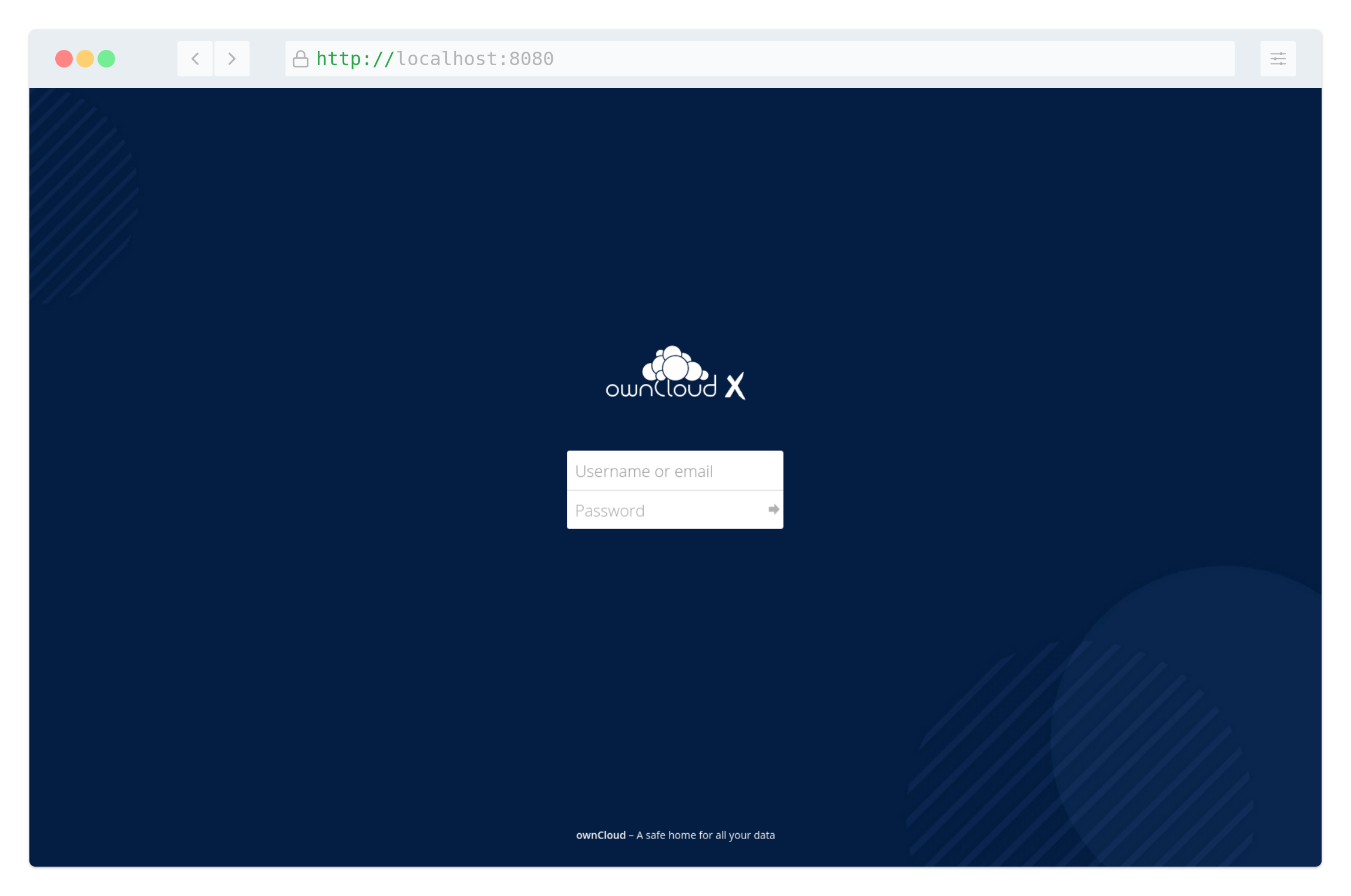
sudo docker compose psIf they are all working correctly, you should see output similar to the one below:



Comments (0)
Leave a Comment
No comments yet. Be the first to comment!